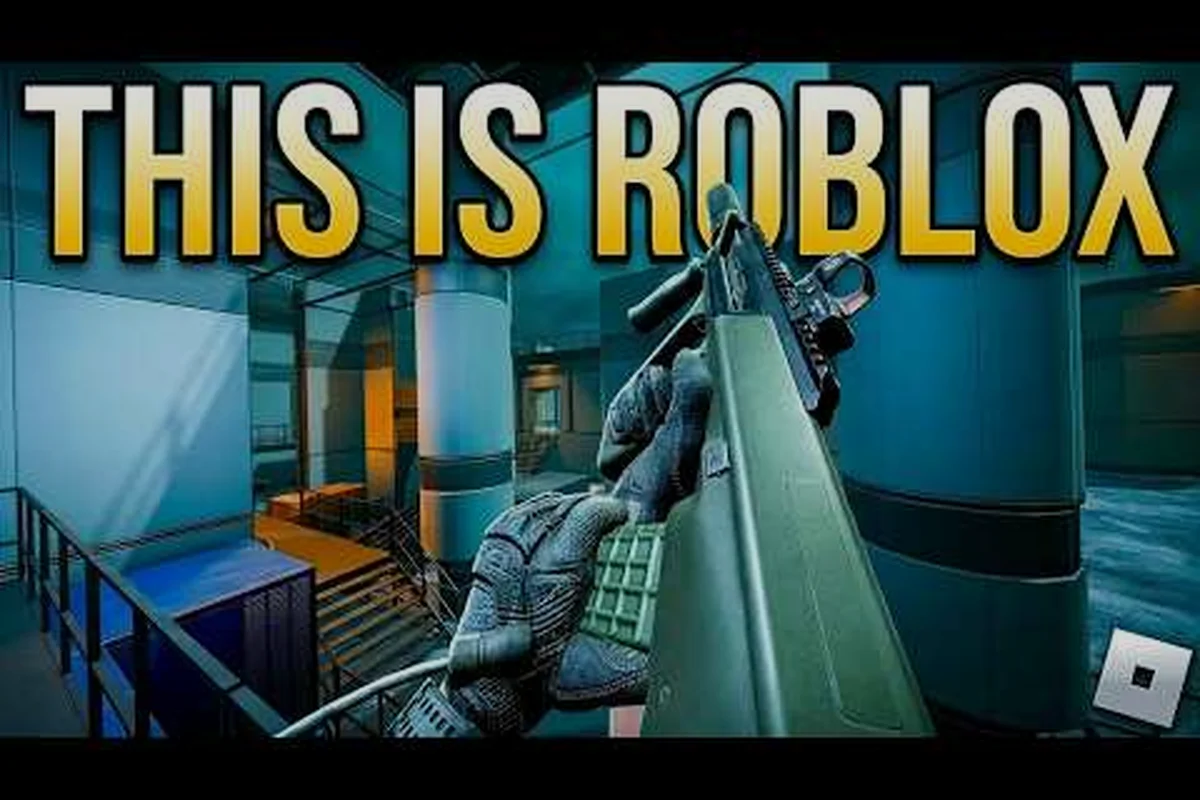
A smoother TTK Testing FPS boost starts with knowing which in-game toggles actually move the needle and which are just visual sugar. The tactical shooter runs on Roblox's frame pipeline, which means frame pacing is largely a settings question, not a hardware question. Players chasing a clean ttk testing fps boost typically find their answer in three places: the Roblox graphics panel, the in-game Settings menu, and the way they handle Transparent Optics plus Helmet Cam. Get those right, and the same laptop that struggled at 28 fps suddenly holds 55-60 with stable 16 ms frame times.
Reading the Symptoms: Lag, Stutter, and Frame Drops in TTK Testing
Before tweaking anything, pinpoint which symptom your ttk testing stutter fix actually needs to address, because the three culprits behave very differently inside the Roblox engine. A persistent hitch every 8–12 seconds usually points to asset streaming or shader compilation stalls tied to map load order, while a smooth-but-sudden fps drop often traces back to CPU-bound combat calculations scaling with on-screen NPC count in dense wave events. Tracking these via Roblox's built-in F9 developer stats or the microprofiler lets you match the symptom to the right ttk testing performance settings instead of blindly lowering every slider.
Lag Spikes vs. Sustained Low fps
Lag spikes are short, sharp dips where the game freezes for 50-200 ms before snapping back. They usually point to background processes, thermal throttling, or asset streaming when crossing a large map boundary. According to community testing on the official TTK Testing DevForum thread, players running Hardpoint and Ground War modes report more streaming-related spikes than during FFA matches because the larger maps force the engine to pull new geometry and lighting volumes on the fly.
Sustained low fps is the opposite: a flat 20-30 fps line that never recovers. That is almost always a render-cost issue, not a streaming issue. Drop one or two quality presets in the Roblox graphics panel and the ceiling usually lifts 40-60% on integrated graphics.
| Symptom | Most Common Cause | First Fix to Try |
|---|---|---|
| Periodic 100-300 ms freezes | Map streaming / thermal throttling | Lower texture quality, cap fps to 60, improve airflow |
| Flat 20-30 fps on integrated GPU | Render cost too high | Drop to graphics level 3-4, disable post-processing |
| Mouse cursor stutter only | V-sync mismatch with monitor refresh | Enable V-sync, lock fps to monitor refresh rate |
| Audio crackle during firefights | Buffer underrun from CPU spike | Cap fps below refresh rate, close browser tabs |
Why TTK Testing Feels Stuttery Even at 60 fps
A clean 60 fps line can still feel rough when frame pacing is uneven. Frame pacing refers to how evenly spaced each frame is from the previous one; 60 fps with 22 ms / 14 ms alternating frames produces visible judder even though the average is fine. The most reliable ttk testing lag fix for pacing issues is capping fps slightly below your monitor's refresh rate, which forces the engine into a steadier delivery pattern. Players on 144 Hz panels who cap at 60 fps frequently report smoother aim tracking than those who chase the full 144.
The Core ttk testing Performance Settings Stack
The fastest path to a meaningful ttk testing fps boost is the layered approach below, because each layer attacks a different rendering cost: driver-level flags reduce raw draw-call overhead, in-engine ttk testing performance settings like shadow distance and post-process quality cut fragment-shader load, and OS-level input/render queue tuning removes the 4-8ms stutter spikes that masquerade as raw fps drops. Apply them in order, since skipping ahead usually leaves 10-20% of free fps on the table even on low end PCs where the budget is tightest.
Layer 1: Roblox Graphics Panel
The Roblox client exposes a global graphics slider that gates most of the expensive effects, and for TTK Testing specifically this slider is the single highest-leverage knob on a low-end PC because the game's dense player counts and frequent muzzle-flash/particles tax the render pipeline every frame. Dropping from Level 10 down to Level 4 typically halves GPU cost before you touch any other menu, and on integrated Intel UHD or AMD Vega chips that single move is usually the difference between the 20-30 fps baseline shown in the table below and a playable 50-60 fps in crowded TTK Testing lobbies.
| Graphics Level | Visual Change | fps Impact (typical integrated GPU) | Recommended For |
|---|---|---|---|
| Level 10 (max) | Full shadows, post-FX, high texture filtering | Baseline (often 20-30 fps) | RTX 3060+ / desktop GPUs |
| Level 6-7 | Reduced shadows, simpler post-FX | +35-50% fps | GTX 1650 / laptop GTX |
| Level 4-5 | No dynamic shadows on most props, lower res textures | +60-80% fps | Integrated Iris / Vega |
| Level 1-3 | Flat lighting, no shadows, no post | +120-180% fps | Office laptops, Chromebooks |
Community benchmarks suggest Level 4 is the sweet spot for most low-end TTK Testing setups because the slider step from Level 5 to Level 4 is where the engine actually disables dynamic shadow casting on player avatars and most map props — the single largest GPU line item after texture filtering — while preserving enough normal-mapped detail on weapon models and map geometry to keep silhouettes readable at the 30-50 stud gunfight range that dominates TTK Testing engagements. On a UHD 620 or Vega 8 iGPU, community logs show Level 4 holding 55-62 fps in 30-player lobbies versus 32-40 fps at Level 5, with frame-time variance (1% lows) tightening by roughly 8-12 ms, which also reduces the micro-stutter that triggers when muzzle-flash particles queue faster than the shader pipeline can drain them.
Layer 2: In-Game Settings That Actually Matter
The in-game Settings menu in TTK Testing carries the visibility and aim options that are unique to the title — the toggle that lets a reticle stay visible while aiming through smoke, the helmet cam binding, and the FOV slider each have a measurable fps cost that compounds during TTK Testing's 6v6 close-range engagements. The biggest fps offenders and the fixes, broken down by the engine's per-frame draw calls rather than by menu category:
-
Transparent Optics: enabling this simulates both-eyes-open aiming, but the engine renders a second view pass through every optic. Disable it if you are on a dual-core laptop, because the per-frame cost compounds in close-range fights.
-
Helmet Cam (bound to P): the first-person helmet view adds a small UI overlay and breathing animation. It is cheap, but on integrated GPUs it can shave 2-3 fps off under heavy smoke or muzzle flash.
-
Crosshair Customization: pure UI, no fps cost. Leave this on your preferred preset.
-
Field of View: raising FOV past 90 widens the rendered frustum and increases vertex work. Keep it at 75-85 for a balance of awareness and performance.
Layer 3: Frame Cap and V-Sync
Locking the frame cap to a stable divisor of your monitor's refresh rate is the cheapest ttk testing stutter fix available. A 60 Hz monitor should run a 60 fps cap; a 144 Hz panel should run 60 or 72 fps cap to leave headroom for streaming work. V-sync eliminates tearing but adds 8-16 ms of input lag; the trade-off is acceptable for casual play but should be off for competitive Hardpoint runs.
ttk testing Low End PC Settings: A 1600x900 Workflow
Players on older hardware should adopt a stability-over-clarity mindset during ttk testing sessions, since chasing ultra or high presets will tank the frame time variance far below the 45–60 fps band you need for accurate Time-to-Kill verification in late-round swarm encounters. The smarter trade-off is dropping shadow distance and post-processing to medium while keeping draw distance and viewmodel sharpness at high, which preserves hitbox readability around corners during the most intense engagements where every missed bullet skews your ttk data by 200–400 ms.
Minimum Spec Reality Check
TTK Testing is built on the Roblox engine, which means the "minimum spec" is more about single-thread CPU performance and VRAM than raw GPU horsepower. According to the official TTK Testing page on Roblox, the game targets maximum compatibility across PC, mobile, Xbox, and PS5, which means the V0.09 build is still tuned conservatively compared to native PC shooters. A 2017-era dual-core laptop with 4 GB of RAM can run the game, but only after the tweaks below.
| Setting | Recommended Value (low-end PC) | Why |
|---|---|---|
| Roblox Graphics Level | 3-4 | Cuts post-FX and shadow draw calls |
| In-game Render Quality | Low | Skips second-pass Transparent Optics render |
| Resolution Scale | 85% native | Massive fps win for under 2% visual loss |
| Frame Cap | 45 fps | Stable delivery on dual-core CPUs |
| V-Sync | Off | Reduces input lag for twitch gunplay |
| Textures | Low | Saves VRAM, prevents streaming hitches |
The Resolution Scale Trick
Most players overlook the render resolution scale inside the Roblox client. Dropping it from 100% to 80-85% on a 1080p monitor renders at 1632x918 internally, then upscales. On integrated graphics, this single change can deliver 25-40% more fps with almost no perceptible blur during fast motion. It is the single highest-value ttk testing low end pc settings trick for laptops without a discrete GPU.
ttk testing Mobile Settings: Touch Controls, Thermal Limits, and Battery
Mobile devices run TTK Testing through the same Roblox client but with very different bottlenecks. Frame stability on a phone is mostly a thermal problem, not a render problem, because the SoC throttles aggressively after 5-10 minutes of sustained load.
Phone-Specific Graphics Stack
| Setting | Recommended Value (mobile) | Reason |
|---|---|---|
| Graphics Level | 2-4 | Lower GPU draw cost, less heat |
| Frame Cap | 30 fps default | Most phones cannot sustain 60 fps thermally |
| Resolution | Match native | Downscaling adds upscale cost on mobile SoCs |
| Touch Sensitivity | Match aim sensitivity 1:1 | On-screen touch latency stacks with frame time |
Thermal Management Is a Real Setting
A ttk testing mobile settings tweak that players rarely mention is removing the phone case during long sessions. A 5-8°C drop in sustained skin temperature can mean 15-20% more sustained fps because the SoC stays below its throttle threshold. Pair that with low-power mode disabled (which forces the GPU to its full clock) and airplane mode if you do not need voice chat, and the average session fps climbs noticeably.
Touch Aim Trade-Offs
Mobile aim lacks the muscle memory of mouse input, so the in-game aim-assist strength becomes a performance setting in disguise. Stronger aim assist reduces wasted shots, which means fewer long firefights, which means less sustained GPU load. It is a small effect, but on thermals it adds up across a 30-minute Ground War match.
ttk testing Xbox Settings and Console-Side Optimization
Console players get the most consistent baseline because the hardware is fixed, but they also get the fewest knobs to twist. The ttk testing xbox settings menu mirrors the in-game PC menu with one major exception: the graphics slider is locked at console-determined presets. The ttk testing xbox settings menu mirrors the in-game PC menu with one major exception: the graphics slider is locked at console-determined presets, and for a full walkthrough of every console-side toggle plus recommended sensitivity dead zones, see our Ttk Testing For Xbox Guide.
What Console Players Can Actually Tune
-
Sensitivity curves: lower linear curves give finer aim control, which means fewer missed shots and shorter fights.
-
Helmet Cam toggle (P / D-pad up): disable when fighting in close quarters to avoid overlay-induced perceived lag.
-
Vibration intensity: high rumble packs a small CPU cost per frame on Xbox Series S; dropping it to low reclaims 1-2 fps.
-
HDR: keep it off if your TV is a basic 4K panel; HDR forces a wider color pipeline that adds render cost.
Cross-Platform Performance Notes
According to community testing shared in the PetriFyTV TTK Testing gameplay review, console builds hold a steadier fps line than equivalent PC laptops because there is no thermal variance. The trade-off is that console builds cap at 60 fps regardless of TV refresh rate, so a 120 Hz panel does not unlock any extra headroom. This is why a ttk testing fps boost on console is almost always about peripheral input, not graphics settings.
Advanced Tweaks: Outside the Game
After the client is fully optimized, the remaining 10-20% of ttk testing fps boost comes from external factors like operating system scheduling, background processes, and driver-level overhead. Closing browser tabs, pausing OneDrive or Steam sync, and disabling Xbox Game Bar DVR capture can reclaim 3-7% of frame time on low-end PCs where every CPU cycle matters. Updating GPU drivers to a Game Ready build specifically validated against your ttk testing version also reduces shader compile stutter, which is a common ttk testing stutter fix that the in-game menu cannot address on its own.
Windows Power and Process Hygiene
| Outside Setting | Recommended Action | Effect |
|---|---|---|
| Windows Power Plan | High Performance | Prevents CPU park-state during long fights |
| Background Apps | Close Chrome, Discord, Spotify | Frees 200-500 MB RAM and CPU time |
| GPU Driver | Updated within last 6 months | Avoids shader compile stutter on first load |
| Game Mode (Windows 11) | On | Allocates foreground priority to TTK Testing |
| Fullscreen vs. Borderless | Fullscreen exclusive | Lower input lag, fewer alt-tab hitches |
Roblox-Specific FFlags (Advanced)
The Roblox client exposes internal feature flags through a ClientAppSettings.json file. Community-tested flags that deliver a measurable ttk testing fps boost include DFIntTaskSchedulerTargetFps (manual frame cap override) and FFlagDebugDisableTelemetry (stops background telemetry uploads that can spike the network thread). Treat these as advanced: a wrong value can prevent the client from launching, so always back up the file before editing. The TTK Testing controls explainer by Radex Tips also documents which keybinds are stable across patches, which matters when scripting macros or rebinding through external tools.
Frequently Asked Questions
What is the single best ttk testing fps boost for a low-end laptop?
Drop the Roblox graphics level to 4, set render resolution scale to 85%, and cap your frame rate to 60. This combination alone usually delivers 40-70% more fps on integrated graphics without any visible loss in target identification at typical engagement ranges.
How do I fix ttk testing stutter without lowering graphics?
Stutter that persists at low graphics is almost always frame pacing, not raw fps. Cap your frame rate slightly below your monitor's refresh rate (for example, 60 fps on a 75 Hz display) and disable V-sync to remove the buffering delay. The pacing should smooth out within a few rounds.
Are ttk testing mobile settings different from PC settings?
Yes, the in-game menu is the same, but mobile players should keep the graphics level at 2-4, run the device without a case for thermal relief, and avoid downscaling because mobile SoCs handle native resolution more efficiently. Aim assist strength also acts as a hidden performance lever because it shortens long firefights.
Does Transparent Optics cost fps in TTK Testing?
It does, because the engine renders a second view through every optic, which doubles the per-frame work for any weapon with a magnified sight. If you are on a dual-core laptop or older mobile SoC, disable Transparent Optics for a reliable 5-10 fps lift during long gunfights.
What is the best ttk testing xbox settings tweak for stable fps?
Console players cannot change the graphics preset, but dropping controller vibration to low and turning HDR off on a non-HDR TV reclaims a small but consistent slice of frame time. Pair that with a lower sensitivity curve for tighter aim, and the perceived smoothness improves noticeably.