Settings
TTK Testing controls and settings guide: confirmed keybinds for PC, console and mobile, sensitivity and FOV tuning, graphics quality, the Helmet Cam toggle and the Transparent Optics setting players ask about most.
Introduction
The Settings hub covers the controls, video and gameplay options that make TTK Testing feel right on your platform. TTK Testing, the realistic tactical FPS by Sable Digital running on Roblox, supports PC, mobile, Xbox and PlayStation, and each platform has slightly different input defaults. The confirmed controls are the ones players ask about most: M1 fires, M2 aims down sights, C crouches, Q/E lean, number keys swap weapons and P toggles the Helmet Cam. Beyond inputs, several settings matter disproportionately to performance: sensitivity and FOV tuning, graphics quality for frame rate, the Transparent Optics toggle that simulates both eyes open while aiming, and the Helmet Cam display toggle that changes your point of view. This hub explains what each setting does, why it matters for the realistic gunplay, and how to optimise it on low-end PCs and consoles. It also covers the common questions about crosshair customisation, both-eyes-open aiming and controller vs mouse-and-keyboard input.
Key Settings Quick Reference
| Setting | What It Does | Why It Matters |
|---|---|---|
| Sensitivity | Mouse or controller aim speed | Too high hurts precision; too low slows target acquisition |
| Field of View (FOV) | How much of the world is visible | Higher FOV shows more peripheral detail at a slight zoom cost |
| Transparent Optics | Simulates both eyes open while aiming | Keeps situational awareness during close fights |
| Helmet Cam | First-person head-mounted display toggle | Immersive view tied to the P key |
| Graphics Quality | Resolution, shadows and effects levels | Controls frame rate; lower on weak hardware |
| Crosshair | Reticle style and colour options | A visible crosshair improves aim consistency |
Settings Breakdown
Sensitivity
The most impactful aim setting
Field of View (FOV)
How much of the world you can see
Transparent Optics
Both-eyes-open aiming for awareness
Helmet Cam
Immersive head-mounted display view
Graphics Quality
Frame rate settings for weak hardware
Crosshair
Reticle style and colour customisation
Core Mechanics
TTK Testing’s settings exist to serve the realistic gunplay rather than to overwhelm you. The confirmed keybinds are simple and mirrored across platforms: fire, aim, crouch, lean, weapon swap and the Helmet Cam toggle are all one-key actions, and the number keys swap between your primary and secondary weapons. Sensitivity is the most impactful setting for aim — most players tune it down on mouse so that micro-corrections feel stable at realistic distances. Field of view controls how much of the lane you see, which trades peripheral awareness against target size. The Transparent Optics setting is unique to this game’s realism loop: with a red dot or holographic sight equipped, it simulates both eyes open while aiming down sights, keeping you aware of your surroundings without losing the sight picture. The Helmet Cam toggle changes the display to a head-mounted camera view, which is immersive but less practical for competitive play. Graphics quality trades visual fidelity for frame rate, and the crosshair options let you fit the reticle to your vision. All of these are confirmed settings in the current build; optimisation advice for weak hardware is community-tested.
Advantages
Tuning your settings properly is a free performance and aim multiplier. Getting sensitivity to your preferred level makes micro-corrections consistent, which matters more in realistic gunplay than any other single change. Raising FOV on low-end machines is often free once you drop shadows and effects, and the visibility gain helps you read lanes earlier. The Transparent Optics toggle is arguably the best free upgrade in the game: it costs nothing to enable and improves situational awareness during close fights in a way that raw aim cannot. Understanding the Helmet Cam toggle lets you enjoy the immersive view without hurting performance. The confirmed control scheme across PC, mobile, Xbox and PlayStation means the advice here transfers to every platform, so you can tune the same settings wherever you play. Combined, these tweaks reduce the frustration of realistic handling and let you focus on learning the game.
Challenges
Settings guidance has two honest limits. First, exact numerical recommendations for sensitivity, FOV and graphics are player-specific: a value that feels perfect for one person can feel wrong for another, and there are no official "best settings" from the studio. Second, some options are confirmed only through community observation of the build — the Transparent Optics toggle is widely documented in videos, but not every setting has an official changelog entry. Performance advice for low-end PCs is community-tested and varies by hardware, so results can differ. Finally, console players have fewer tuning options than PC players, which means part of the optimisation advice simply does not apply on Xbox and PlayStation — the hub recommends what is actually adjustable on each platform.
Frequently Asked Questions
What are the default controls in TTK Testing?+
Should I use Transparent Optics in TTK Testing?+
What settings improve FPS on a low-end PC?+
Quick Tips
Tune sensitivity in small steps: start with the default, drop it lower if you over-rotate, and raise it only if you cannot track targets. Realistic gunplay punishes both extremes, and five minutes of consistent micro-corrections in a test match beats guessing at arbitrary values before you queue, especially when you are also adjusting FOV and ADS sensitivity in the same session.
Enable Transparent Optics for close-range builds: with a red dot or holographic sight it keeps your peripheral awareness while aiming, which is the biggest visibility upgrade that costs nothing. Most players who try it never go back, and it pairs perfectly with the aggressive loadout archetypes and the night map variant, where seeing movement outside your sight picture is the difference between life and death.
Match your graphics setting to your monitor, not your ego: on a low-end PC, dropping shadows and effects for a stable frame rate is worth more than visual polish, because consistent frames make your aim feel reliable. Test at the new settings, then adjust FOV until the lanes read clearly.
Featured
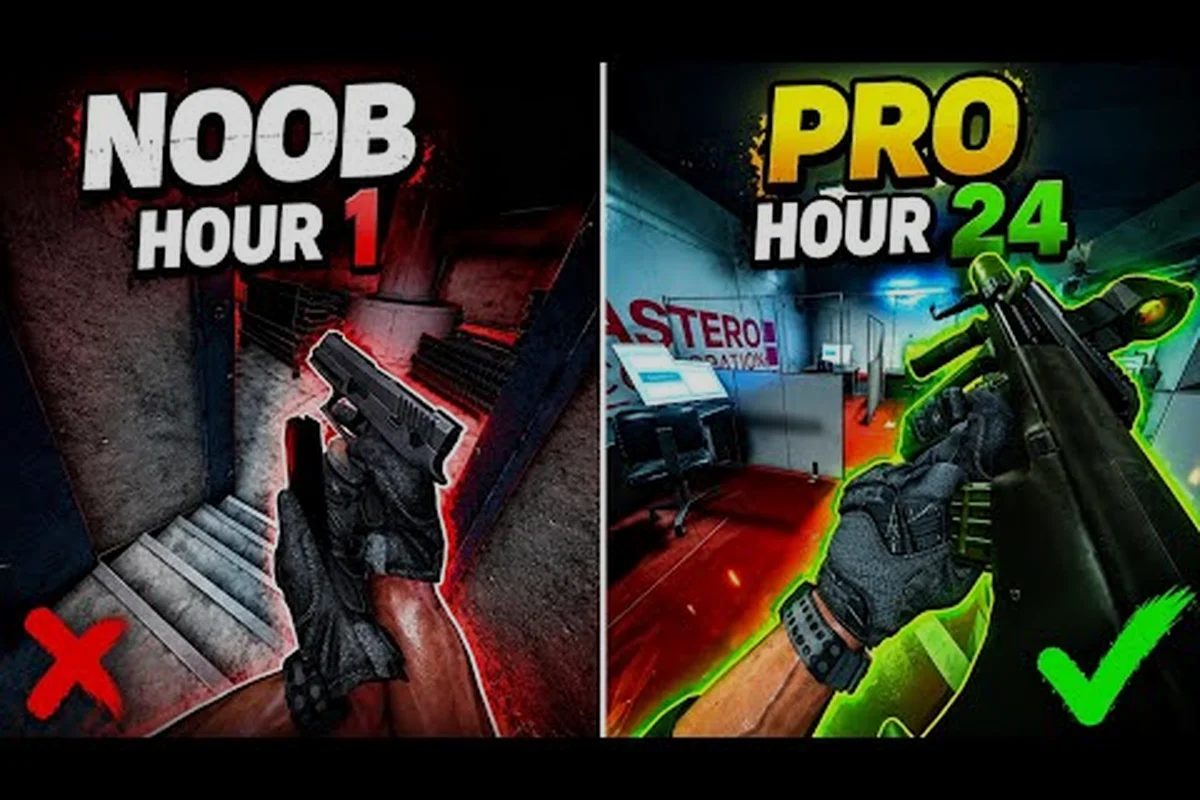
TTK Testing ADS Sensitivity: Optic Transparency & Sight Tuning
Calibrate your TTK Testing ADS sensitivity, optic transparency, and both-eyes-open setup so every red dot, holo, and scope lands exactly where you aim.
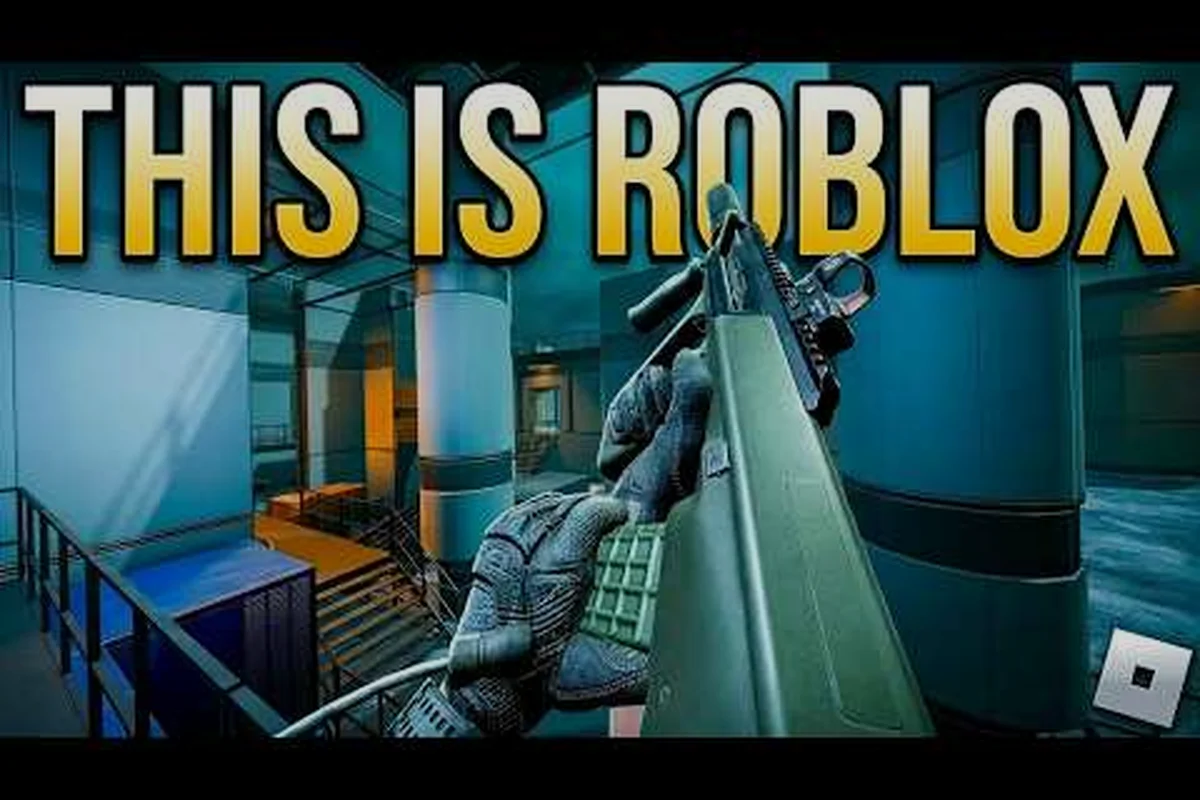
TTK Testing Rebind Keys: Custom Keybinds for Lean & FOV
Master TTK Testing rebind keys with custom lean and crouch binds, audio mix options, and a quick Helmet Cam toggle setup that matches your grip and playstyle.
TTK Testing FPS Boost: Lag Fix, Stutter Fix & Low-End PC Tips
Unlock a smoother TTK Testing FPS boost with low-end PC settings, mobile tweaks, and console-side options that cut stutter and stabilize frame pacing.
All Articles
TTK Testing Graphics Settings: Quality, FOV & Visual Options
Tune TTK Testing graphics settings for clarity and steady FPS: quality presets, field of view, and visual options explained for every supported platform.
TTK Testing PS5 Settings: Controller, Sensitivity & Lean Keybind
Dial in TTK Testing PS5 settings with controller sensitivity presets, aim assist tuning, and a comfortable lean keybind that keeps your trigger hand anchored.
TTK Testing Video Settings: Advanced Menu, FOV & Keybinds
Explore every TTK Testing video settings option, from FOV and advanced graphics toggles to sensitivity sliders and keybind slots that shape your combat feel.